Your $1 package
Current customer release: Shuto 0.3.0-rc17. Get Shuto on Gumroad.
Already purchased? Download the latest approved Shuto ZIP using the license key in your Gumroad library or receipt. Your existing purchase covers this download; you do not need to buy again.
Shuto combines a road map, GPS route guidance, an animated light strip and assistant controls in one Assetto Corsa app. Its desktop connection lets Claude Code (the default) or Codex read driving information and supported navigation state. The AI client remains a separate program.
Pit Crew repair and fuel controls are included in Shuto. Tokyo Nightshift remains an optional free add-on, downloaded separately. Shuto costs $1; Nightshift is available for $0+.
The new TRAFFIC panel and behavior improvements are included as an optional experimental patch. A compatible 2REAL TrafficTool 2.1.1 source build and its assets must already be installed. Run the free compatibility checker before buying specifically for traffic. See the traffic guide for supported conditions and rollback.
What Shuto adds to Shutoko and 2REAL
Shuto builds on SRP’s roads and 2REAL’s traffic. These are the differences in the rc17 customer download:
- Navigation: 83 visible destinations, a scrollable dropdown, clickable map markers, expanded map view with its own NAVIGATE button, and optional right-button panning. GPS follows every traffic lane in its own direction, with independent cyan personal/amber Nightshift routes.
- Lane keeping and cruise control: the AUTOPILOT tab steers to keep the car in its lane while you work the pedals, and a cruise control button holds your current speed.
- Mountain road exits: where the map closes off a real expressway, leave for a mountain road you have installed and come back to the same spot.
- SPOTIFY tab: what is playing, with play/pause, next and previous.
- Driving companion: telemetry and supported route commands for a separate desktop AI client. Voice and account access come from that client.
- Traffic coordination: local lane reservations, predictive civilian braking, conditional evasive steering, and earlier gap planning for eligible expressway merges.
- Pursuit rules: an optional fair-pursuit mode removes identified player-speed matching and lane-pursuit catch-up shortcuts.
- Traffic continuity: targeted nearby/visible-car cleanup protection and full-rate heading updates out to 200 metres.
- Pit Crew: offline full repair with a wheel or keyboard binding that leaves your fuel as it was, plus SET FUEL for a chosen total tank amount.
- With Tokyo Nightshift: three-leg long-haul contracts with no delivery deadline, fixed yen fees, saved career consequences, and roadside tickets or conditional bribes. Install Nightshift 0.5.0-rc6.
Police chases, helicopters, lane changes, headlight reactions, crash deformation, racing progression and minimaps already exist in 2REAL. Shuto changes selected behavior and connects it to its own navigation and companion systems. Read the categorized comparison for attribution, release boundaries and limitations.
Development only: automatic Home spawning, model-specific police profiles, sharper local evasions, civilian player-safety trials and collision-lift correction remain local experiments outside rc17. Mocked checks do not establish driving quality; in-game validation of the customer changes remains pending.
Map and fuel controls in rc14
Choose one of the 83 visible destinations from the dropdown, or click a map marker, then press NAVIGATE. The maximize icon at the upper right uses the app window for the map; the minus icon restores the normal controls. The expanded map has its own NAVIGATE button in the lower right, so you can pick a point and route to it without leaving the big map. Scroll to zoom, left-drag to pan, or enable Right mouse button pans map. FOLLOW CAR recenters the view. Road checkpoints are road references, not promises of parking space.
Since rc17, GPS plans over every traffic lane of the map, each driven only in its own direction, changing lanes and using merges and junctions the way traffic does. Some familiar trips get longer where the old router cut across against traffic, and left/right in turn guidance now matches the road. Route guidance cannot verify barriers or a safe physical maneuver. Normal session spawning is retained.
In PIT CREW, choose the total litres you want in the tank and press SET FUEL. The amount is limited to the current car’s tank capacity. This can add or remove fuel in offline sessions, is disabled in replays, and invalidates the current lap. Since rc17, FULL REPAIR and its binding repair the car and leave the fuel as it was; use SET FUEL to refuel.
New in rc17: lane keeping, cruise control, mountain roads and Spotify
Everything below is new since Shuto 0.3.0-rc16. Offline single-player only.
AUTOPILOT: lane keeping. Drive in a lane and press ENGAGE (or a button you assign in the tab). Shuto steers to keep the car in the lane it is in, like a road car’s lane-centring assist; the gas and brake stay yours. It stays in its lane: no lane changes, no exits, no route. Steer yourself to change lanes and it lets go; let go of the wheel and it picks up the lane you are in. Where a lane ends it warns you and hands the wheel back. It does not see other cars, so keep watching the road. The lanes come from the Shutoko traffic lane data that 2REAL’s traffic uses (traffic.json in the track’s data folder); without it the tab says there are no lanes to follow. Corners: it learns how your car responds while you drive, so the first bend may run a little wide.
AUTOPILOT: cruise control. Assign the CRUISE CONTROL button in the same tab, or use SET CRUISE. Press it to hold the speed you are doing (20 km/h and up); press it again, or brake, to turn it off. There is no resume. It works the gas only and never brakes, so it can run over the set speed downhill. Press the gas to go faster; let go and it comes back to the set speed. Cruise control works with or without lane keeping.
Mountain road exits. Where the Shutoko map closes off a real expressway (Route 3, Route 4, Route 5, the Ueno Line, Route 6, the Kariba Line and the Aqua-Line), stop near the end of the road and open MAP: MOUNTAIN ROADS lists the mountain roads reached that way, and EXIT TO … restarts Assetto Corsa on the one you choose. From the mountain road, RETURN TO THE EXPRESSWAY brings you back to the spot you left. Only roads whose track is installed under content/tracks with the expected folder name are offered; Shuto does not include or download any track. Supported folders: Kan-Etsu: ek_akagi, CG OGO AKAGI TOUGE, ek_akina, pk_akina, mount_akina_2017, ek_akina_lake, ek_myogi, ek_usui_circuit, pk_usui_pass, ek_sadamine, saitama_maze, shomaru, ek_tsuchisaka. Tohoku: ek_irohazaka, ek_momiji, ek_happogahara. Joban: ek_tsukuba_fruits_line, ek_tsukuba_fruits_line_snow, dousojin_touge, dousojin_touge_1990, mitsuishi_forest_park. Tomei: ek_nagao, ndp_kameishi, KTWorks_Ogasayama, ndp_kuragari, 90sgdsp_koumori_touge_drift, minoo, mizukoshi, Minato_Kisenkogen, sakanotsuji, shoubudani, YAMAGA, Minato_BenokiDam. Chuo: 90sgdsp_hayato, ndp_makime, dz_nijusei_touge, projecttouge, harugahara_touge. Yokohama Shindo: ek_hakone_turnpike, ek_tsubaki_line, ek_nanamagari, hakone_ohiradai_v3. Aqua-Line: Minato_Manobori. The exits work in single-player Practice without AI opponents. The clock moves on by roughly the real drive time each way. SET EXIT HERE and SET ENTRY HERE move an exit to where you are. Two bindable buttons (Mountain road exit, Next mountain road) work without opening the app.
SPOTIFY. Shows what is playing (title, artist, album, cover and progress) with PREVIOUS, PLAY/PAUSE, NEXT and OPEN SPOTIFY. The buttons press the Windows media keys, so they control whichever player Windows treats as current. No Spotify login is used; volume, seeking and playlists stay in Spotify.
ASSISTANT tab. ASSISTANT SETTINGS is now called ASSISTANT, and START OVERLAY, SHOW, HIDE and RESTORE live on that tab only (they no longer repeat under MAP and TRAFFIC).
Lane keeping and cruise control were driven by the developer before release; the other changes have automated and mocked checks. In-game validation of this customer package as a whole remains pending.
Roadside stops, tickets and bribes
With Shuto 0.3.0-rc17 and Tokyo Nightshift 0.5.0-rc6, pull over below 5 km/h with a slowing officer within 20 metres on your road level. Open Dispatch for the roadside decision. At pursuit peaks up to 100 mph, take or pay a JPY 22,500 ticket; above 100 mph, only a JPY 150,000 bribe is offered, with 20% acceptance. After last train contracts, fleeing a stop, and a refused bribe block both payment options. Refused bribes return the reservation. Successful payment releases the pursuit and patrol emergency lights switch off. Surrender or the roadside decision timeout fails an active run. Long-haul deliveries have no deadline, no speed bonus and no recurring police waves. See the Nightshift guide for the three-leg job flow and upgrade details. Automated checks pass; driving validation of the packaged update remains pending. Prices, purchase keys and protected downloads are unchanged.
A look inside Shuto
The redesigned interface brings Dispatch-style cards and cyan/violet accents to the other tabs, with a near-black indigo background. The original logo colors stay unchanged.
Interface preview: these images are simulated layouts generated from the app’s UI code, with example values. Rc14 includes the shared tab styling; these illustrative previews predate its new map controls and fuel-only setting. In-game screenshots will follow after visual validation.
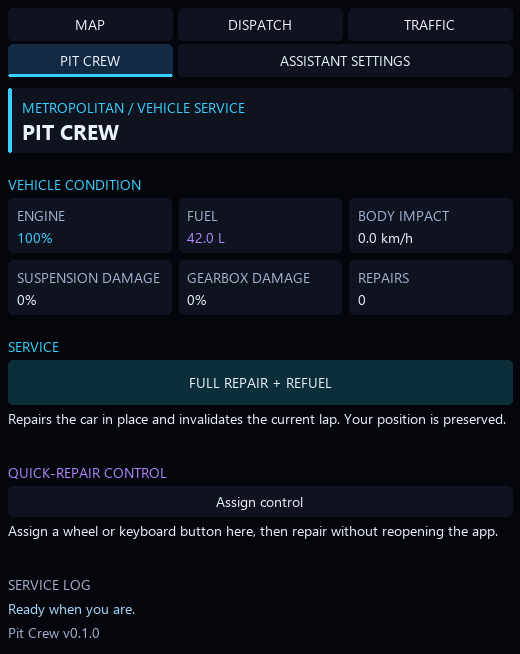
Vehicle condition and repair controls in one view. Open full preview.
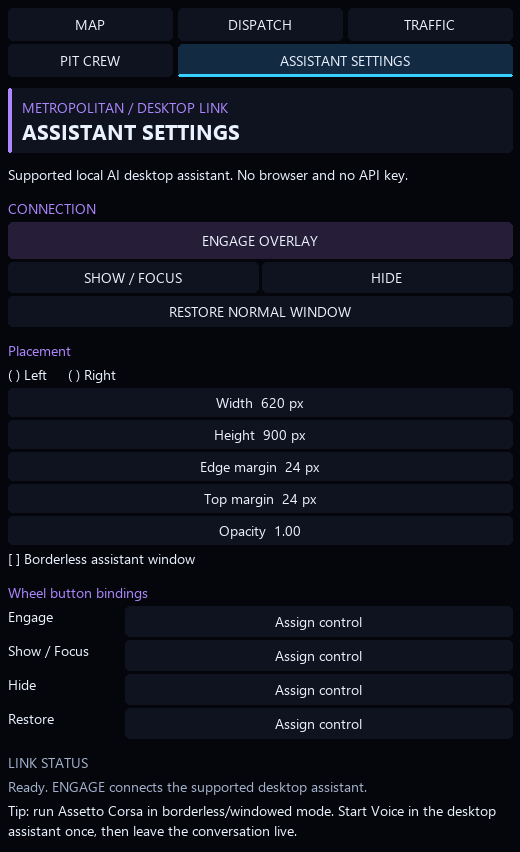
Desktop connection, window placement and wheel bindings. Open full preview.
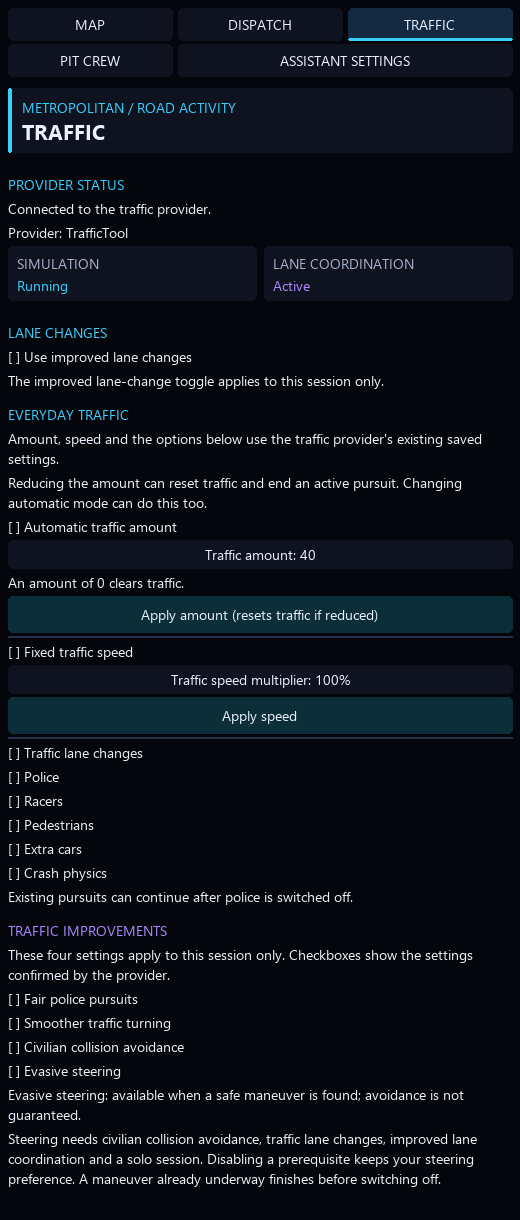
Provider status and everyday controls before advanced options. Open full preview.
Before you install
- Windows 10 or 11 and Assetto Corsa.
- Shutoko Revival Project 0.9.4 PTB1, installed separately.
- A compatible Custom Shaders Patch installation with app build 3063 or newer.
- Python 3.11 or newer, available as
python.exein PowerShell. Select “Add Python to PATH” during Python setup. - For the assistant connection: Claude Code, signed in. The Claude desktop app bundles the
claudecommand the installer uses; the Claude Code CLI works too. Codex desktop with plugin support andcodex.exein PowerShell remains supported as an option.
The purchase does not include the game, map, CSP, AI account access or 2REAL TrafficTool. The map and in-game controls can be used directly, but the supplied installer checks Python as part of setup. Voice input depends on your desktop AI client; Shuto does not provide it.
Install
- Close Assetto Corsa. Use your Gumroad purchase key at the download page and extract the ZIP’s entire folder.
- Open PowerShell as Administrator in the extracted folder.
- Run:
Set-ExecutionPolicy -Scope Process Bypass
.\Install-Metropolitan.ps1
For a different Steam library, provide the actual Assetto Corsa folder:
.\Install-Metropolitan.ps1 -AssettoCorsaRoot "D:\SteamLibrary\steamapps\common\assettocorsa"Use -CheckOnly for a read-only prerequisite check. Existing users can use -AppsOnly to update the in-game app while preserving their assistant installation and registration. Claude Code is registered by default; add -Assistant Codex to register the Codex plugin instead, -Assistant Both for both, or -Assistant None to skip registration. Existing installations can connect Claude Code without reinstalling by running Register-Metropolitan-Claude.ps1 from the package (the installer also copies it to %USERPROFILE%\plugins\assetto-corsa-telemetry).
The installer backs up replaced files, preserves installed add-ons and moves the old separate KITTChatGPT app out of the game’s app list. It does not change your CSP settings, car physics or controls. Keep the backups.
Include the experimental traffic patch
Run the free checker first. With a compatible TrafficTool installation, use Install-Metropolitan-With-Traffic.ps1 instead of the core-only installer. It validates prerequisites and source fingerprints before installation. The traffic patch replaces only its narrow file scope and creates verified backups. Different source builds or custom edits may be incompatible even when labeled 2.1.1.
Rc14 carries the rc13 traffic patch unchanged: the earlier disappearance fixes, rolling merges and roadside encounters. It supports exact compatible original files and approved rc9 through rc12 upgrades. Existing buyers use the same key and download link; the rc9 ZIP in Gumroad remains a fallback. See the traffic upgrade instructions.
The complete traffic guide covers settings, dependencies, experimental limits and restoration. After installation and restart, open Shuto > TRAFFIC. The traffic provider must be enabled and running on the supported map.
First drive
- Enable Shuto in Content Manager’s Lua apps list. The ZIP and the installer scripts keep their earlier file names.
- Start single-player Practice on the supported Shutoko map.
- Open Shuto from the in-game apps sidebar.
- Use MAP to choose a supported destination. If using the assistant, start a new Claude Code session (Claude desktop app > Code) or a new Codex task after installation.
- Try: “Create a route from my current position to Hakozaki PA.”
Shuto’s independent route is cyan. Nightshift’s job route is amber. Clearing one does not clear the other. A route planned between two landmarks is not guidance from your car until you reach its start.
The window and the companion
ROLL UP leaves the animated light strip visible in a compact window. EXPAND restores the full app. Assistant Settings provides placement and wheel-binding controls. The light strip is decorative; it is not a police scanner.
Ask about current speed, fuel, tyre condition, a supported destination or the next reported maneuver. With Nightshift installed, ask about your active job, credits or reputation. With a compatible pursuit feed, ask about police separately from the helicopter.
The assistant receives snapshots when it reads the connection. That is not continuous screen vision or guaranteed automatic turn callouts. Installing the telemetry connection does not start a conversation or a voice session; open the desktop client and keep one session live while you drive.
If something is missing
- No app in the game: confirm the install path, enable the Lua app in Content Manager, then restart Assetto Corsa.
- No assistant tools: start a new session after installation. In Claude Code, run
/mcpand confirmassettoCorsaTelemetryis connected, or rerunRegister-Metropolitan-Claude.ps1. In Codex, check that the plugin is enabled in that task. - No DISPATCH career: install the separate Tokyo Nightshift add-on after Shuto.
- No TRAFFIC controls: install the current rc16 package with the traffic patch and restart the game. If the tab keeps waiting for traffic, confirm the compatible traffic patch is installed and TrafficTool is enabled. Do not reinstall CSP to look for it.
- Route unavailable: some landmarks, road connections and final approaches are outside the supported graph. Choose another supported destination rather than treating a bearing as a turn.
- Old information: refresh the relevant feed. An available connection does not prove that the game is still updating it.
Upgrading and known limits
Shuto was previously called RAVN. Some internal folder names retain that name for compatibility. Do not delete the existing RAVNNavigation app just because it has the old identifier.
This is an early release. Automated package, navigation and interface checks do not replace an in-game test. Clean-machine assistant setup, the assistant overlay on the Claude desktop app, current UI rendering and route coverage still have limits. See the release and development notes for the included experimental features and remaining validation work.
Pit Crew
Pit Crew is included in Shuto’s PIT CREW tab. Open it in an offline session and choose FULL REPAIR + REFUEL to restore the car and fuel in place. Repairs invalidate the current lap. Repair is disabled online and during replays.
Assign a wheel or keyboard button in this tab for quick repairs. The integrated control has its own binding, so reassign your preferred button if you previously used the standalone app. Your repair count is retained. You can disable the older Pit Crew app in Content Manager once you have switched to this tab.
No separate Pit Crew download is needed. Tokyo Nightshift remains a separately downloaded optional career add-on. In-game repair and layout validation is still pending.
Assistant Settings
Open ASSISTANT SETTINGS at the top of Shuto to choose the desktop assistant (Claude Code by default, Codex optional) and to set overlay placement, size, opacity and wheel bindings. START OVERLAY, SHOW, HIDE and RESTORE act on the selected desktop app. Settings are always visible in this tab. Existing assistant preferences and bindings are retained.